
Support
Troubleshooting
Most problems come down to Wi-Fi, battery or phone settings. Find your symptom below and work through the steps in order.
Use 2.4 GHz Wi-Fi
Both products need 2.4 GHz Wi-Fi. 5 GHz-only networks won't work. Most home routers have both bands. If yours shows only one network name, it may be combining them — enable 2.4 GHz or "mixed mode" in your router settings, or ask your internet provider.
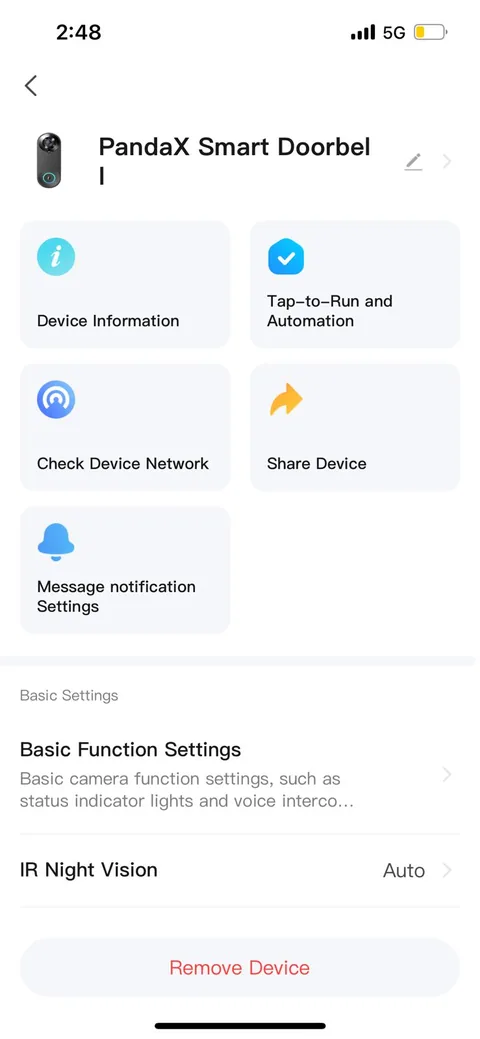
Not getting alerts
- Phone settings → Notifications → allow Smart Life.
- Turn off battery optimisation for Smart Life.
- On Android, allow auto-launch and background activity for Smart Life.
- In the app, check motion detection and message notifications are switched on.
- Make sure you're logged into the same account that owns or shares the device.
Changed your Wi-Fi name or password?
Remove the device from the app, reset it, and pair it again with the new details.
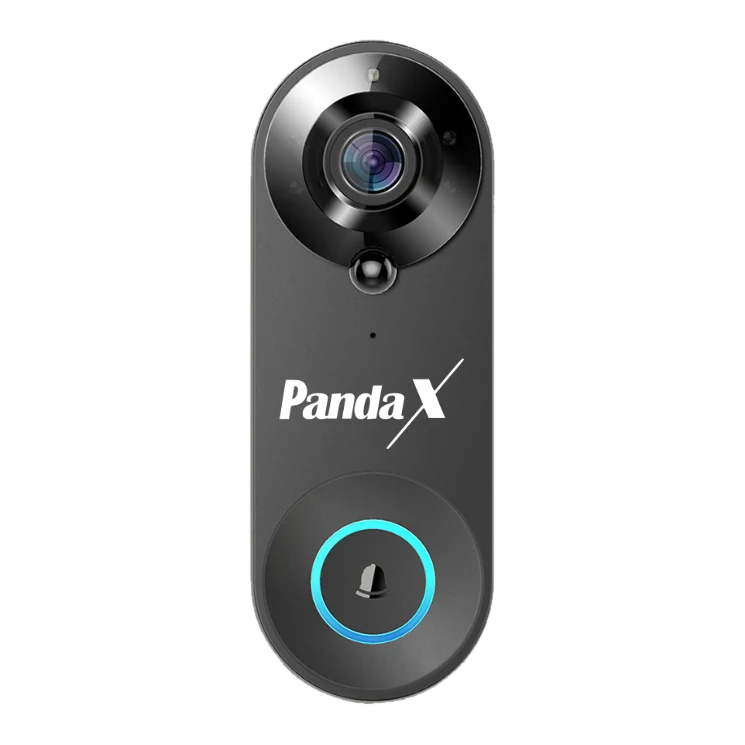
Doorbell shows "offline"
- Check the battery level; charge if low.
- Check your Wi-Fi is working and is 2.4 GHz.
- The doorbell may be too far from the router or mounted on metal. Move the router closer, add a range extender, or move the doorbell.
- If your Wi-Fi name or password changed, remove the device from the app, reset it and pair again.
- Restart your router.
Doorbell won't pair
- Phone and doorbell on the same 2.4 GHz network.
- Correct Wi-Fi password (check capital letters).
- Doorbell charged and close to the router.
- Reset it (hold Reset for about 3 seconds) and try again.
- Avoid Wi-Fi names with special characters.
Full pairing steps are in the doorbell setup guide.
Can't play back recordings
Playback needs a microSD card in the doorbell (up to 64 GB) or an active cloud-storage plan.
Reset the doorbell
- Remove the old device from the Smart Life app.
- Press and hold Reset for about 3 seconds until you hear "System reset".
- Wait for "Camera is now ready for pairing".
- Pair it again in Smart Life.
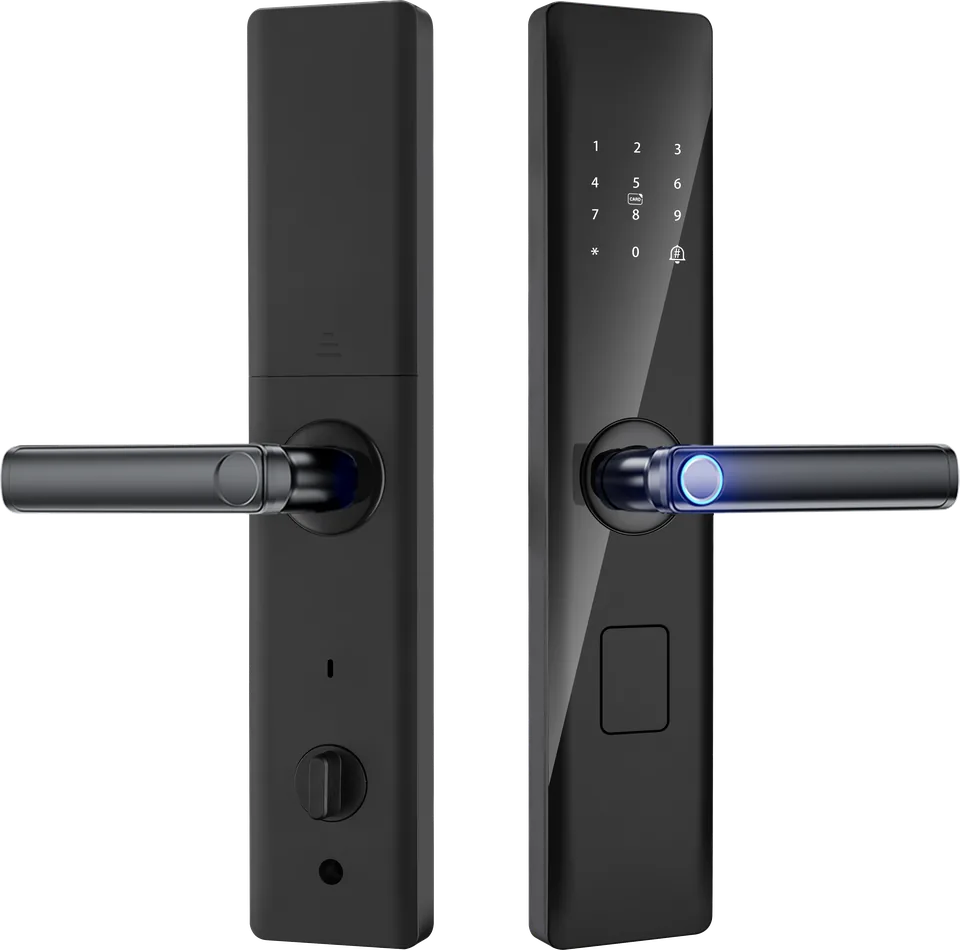
Lock keypad is locked
After 5 wrong attempts, the keypad locks for 90 seconds. Wait, then try again with the correct PIN or fingerprint.
Fingerprint not recognised
Clean and dry the sensor and your finger. Very dry or wet fingers can fail — try again or use another enrolled finger. Re-enrol the finger if it keeps failing.
Lock not responding in the app
Check the lock's batteries, your 2.4 GHz Wi-Fi and the app's permissions. Fingerprint, PIN, card and mechanical key still work without the app.
Batteries completely flat? See if the batteries run out.
Reset the lock (factory reset)
This deletes all users, fingerprints, PINs and cards.
- Open the inside battery cover.
- Press and hold the reset button for about 5 seconds until you hear "Initialisation successful".
- Set up the admin again — see the lock setup guide.
Still stuck?
WhatsApp or email us with your order ID, the product and a short video of the problem. We usually reply within 24 hours.